Order Builder - Editing Order
Editing Products in the Order Panel
-
To make a change rung up products the operator must select the product to be edited.
-
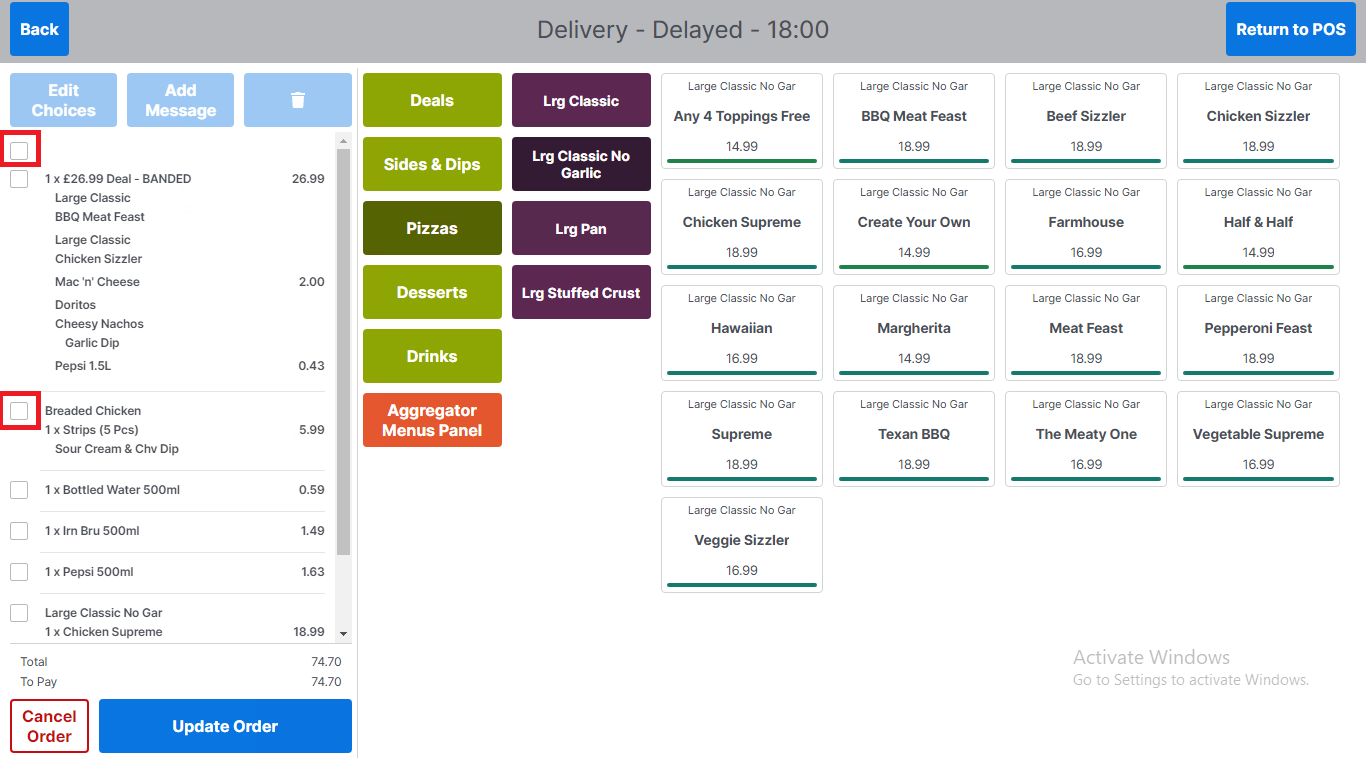
Selecting the check box beside the products will only edit that product, any changes will apply to the selected product(s). The user can select more than one product for editing
-
Selecting the check box above the products will select all products in the basket, any changes will apply to all products
-
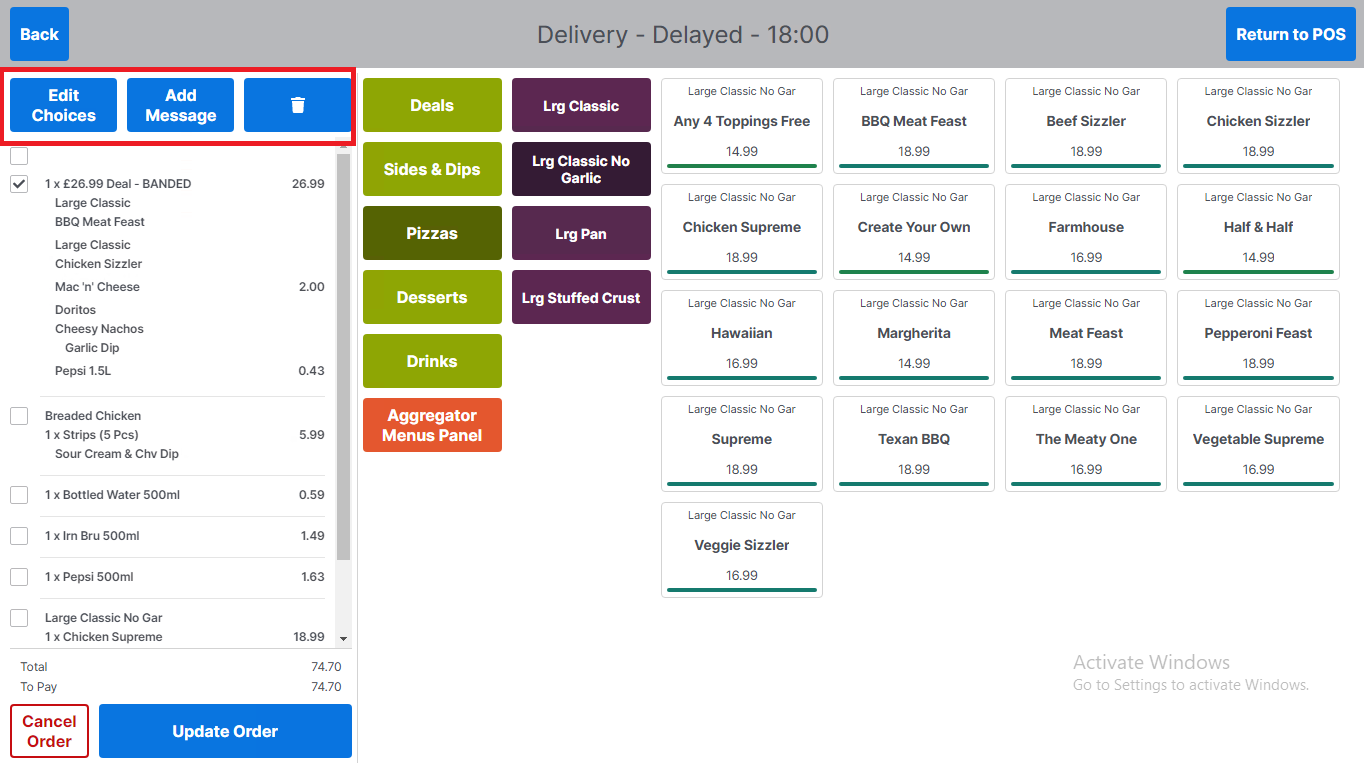
Once product(s) are selected the edit button functions at the top of the order panel are enabled
Deleting Products in the Order Panel
-
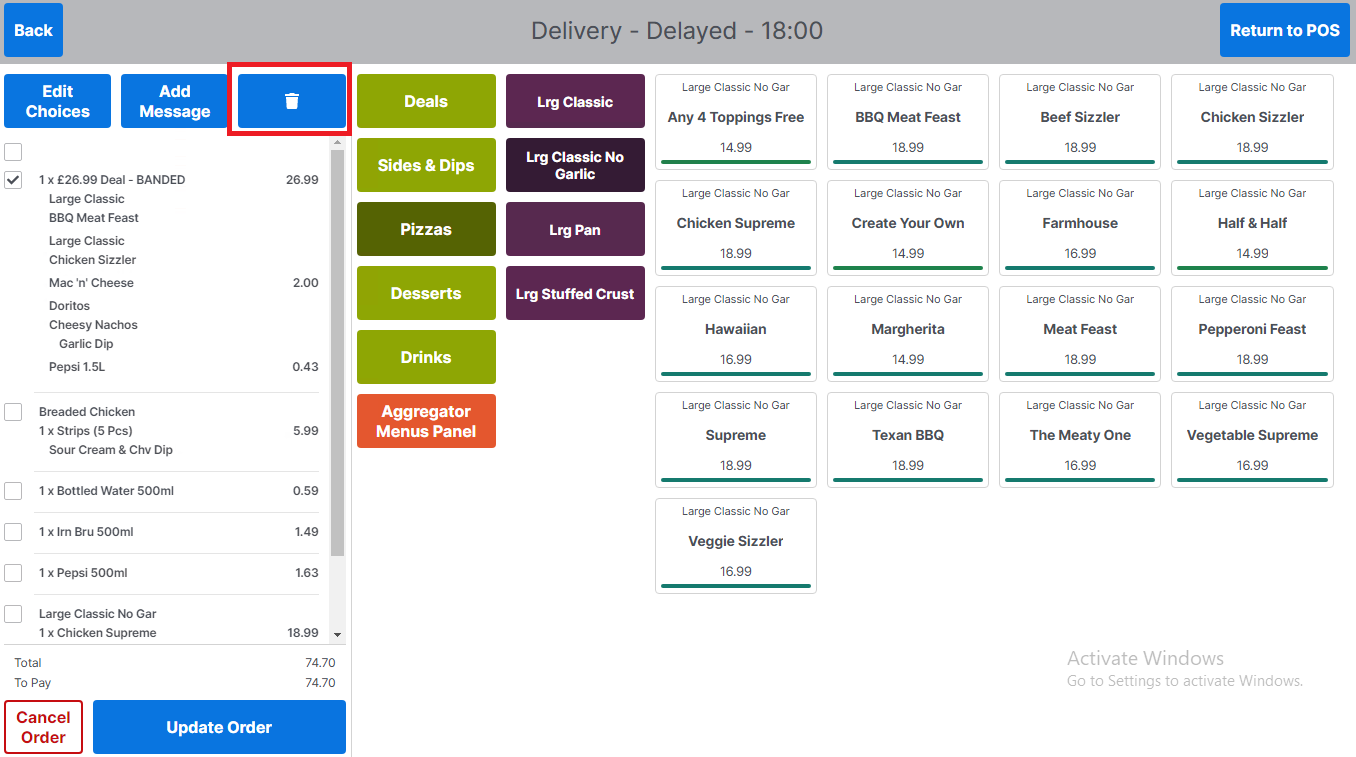
To delete product(s) from the basket select the products to be deleted and then select the button with the bin icon
-
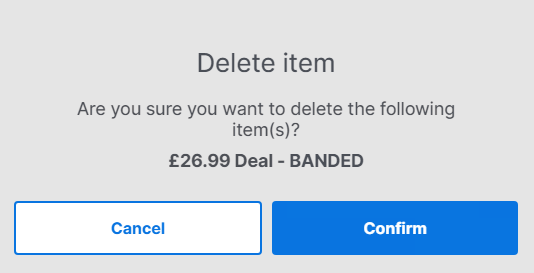
The user will be presented with a prompt to confirm they want to proceed or cancel to go back to the order screen
-
Editing Products with Choices in the Order Panel
-
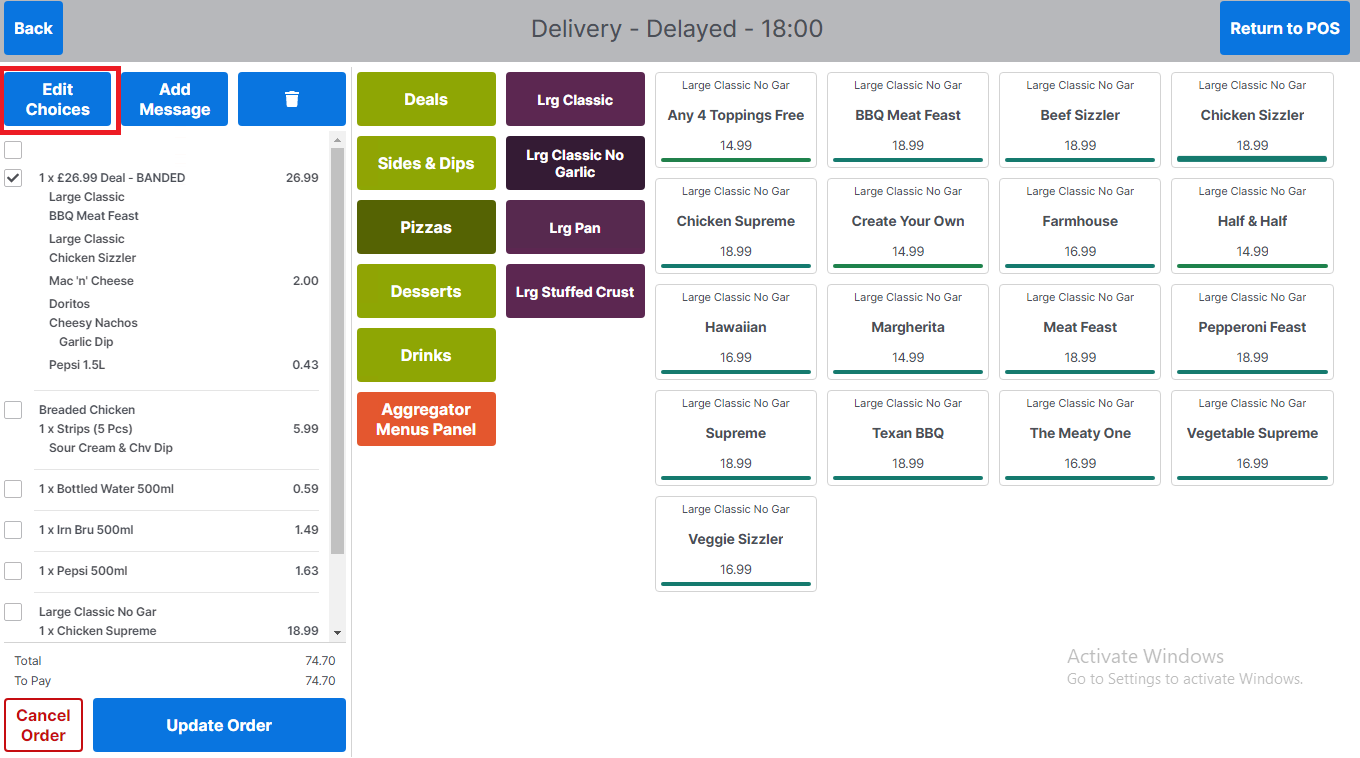
To edit product choices from the basket, select the product to be edited and then select the Edit Choices button
-
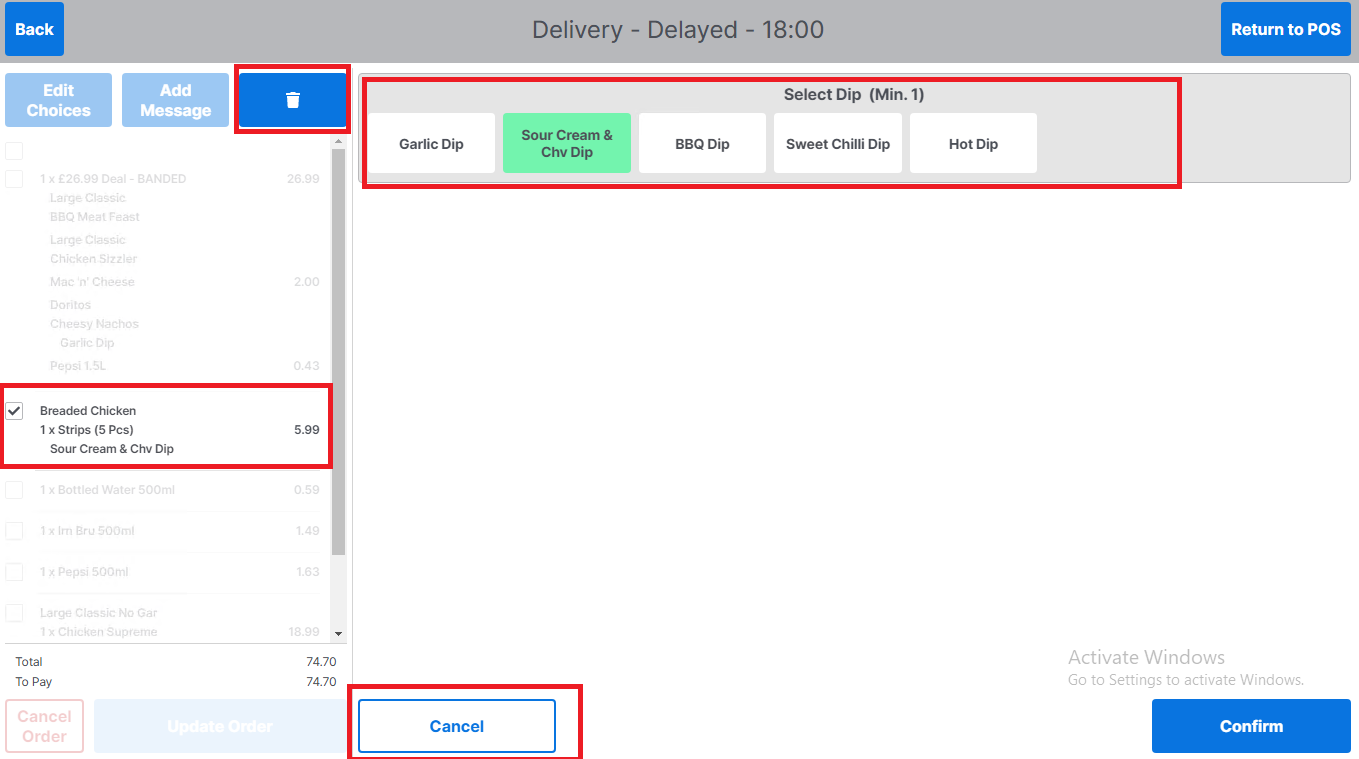
This will return the operator back to the product selection screens for that product to allow editing of choices
-
The operator can select Cancel to cancel making any changes to the product selected
-
All other products in the basket will be greyed out until current product selection is complete.=
-
Select Confirm to save any changes
-
If required, the operator can delete the product from the Edit Choices screen by selecting the button with the bin icon
-
Adding a Message to a Product
-
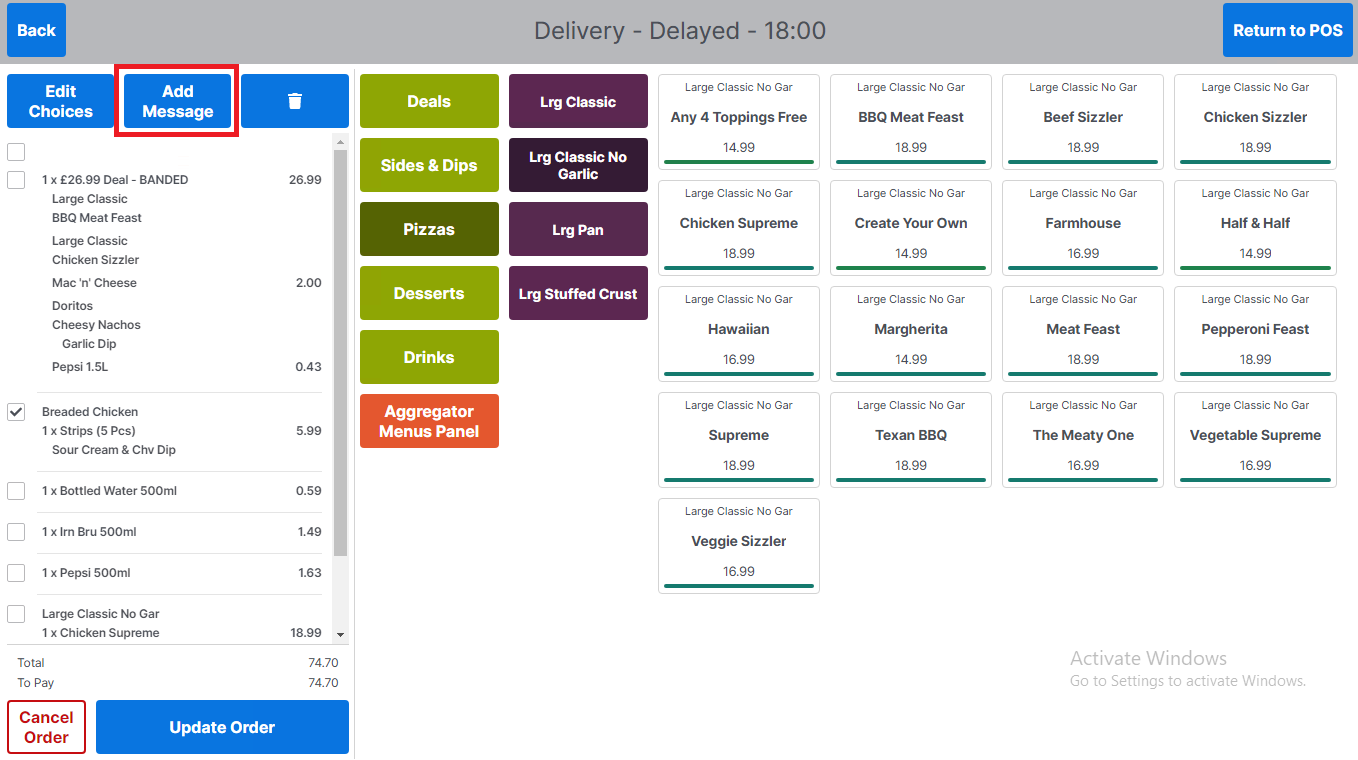
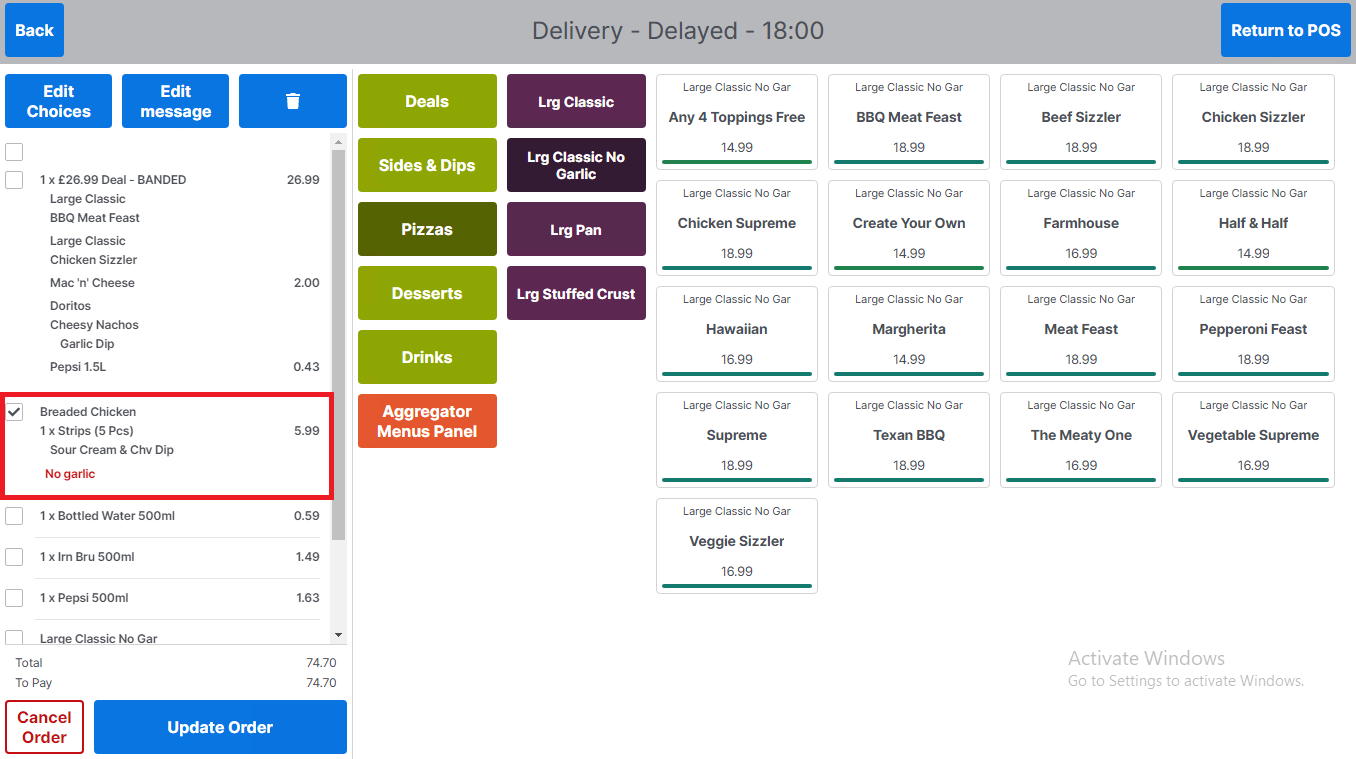
To add a message to a product, select the product to be edited in the basket and then select the Add Message button
-
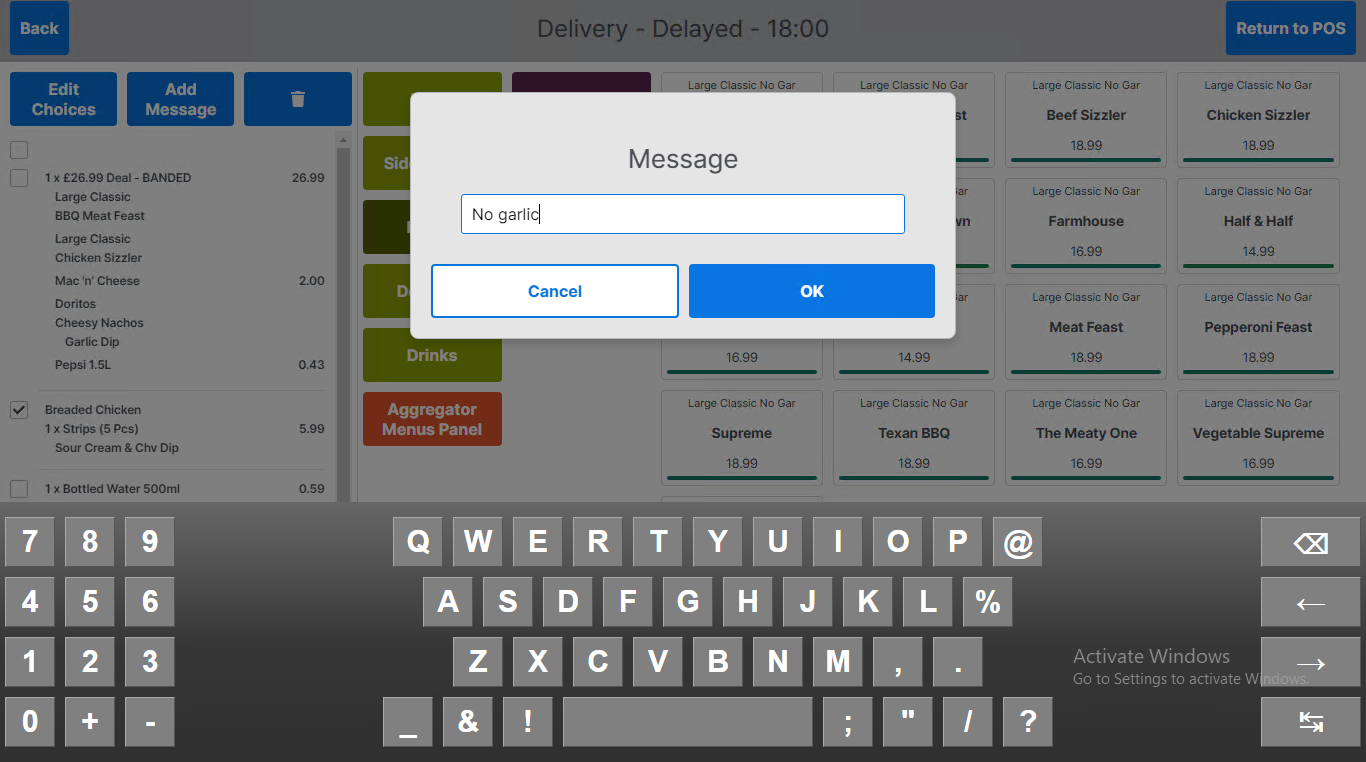
The operator will be presented with the Message entry prompt and the keyboard (if enabled), enter message and select OK to proceed or Cancel to return to the order screen
-
If the operator selects OK the product selected in the order panel will be updated with the message
-
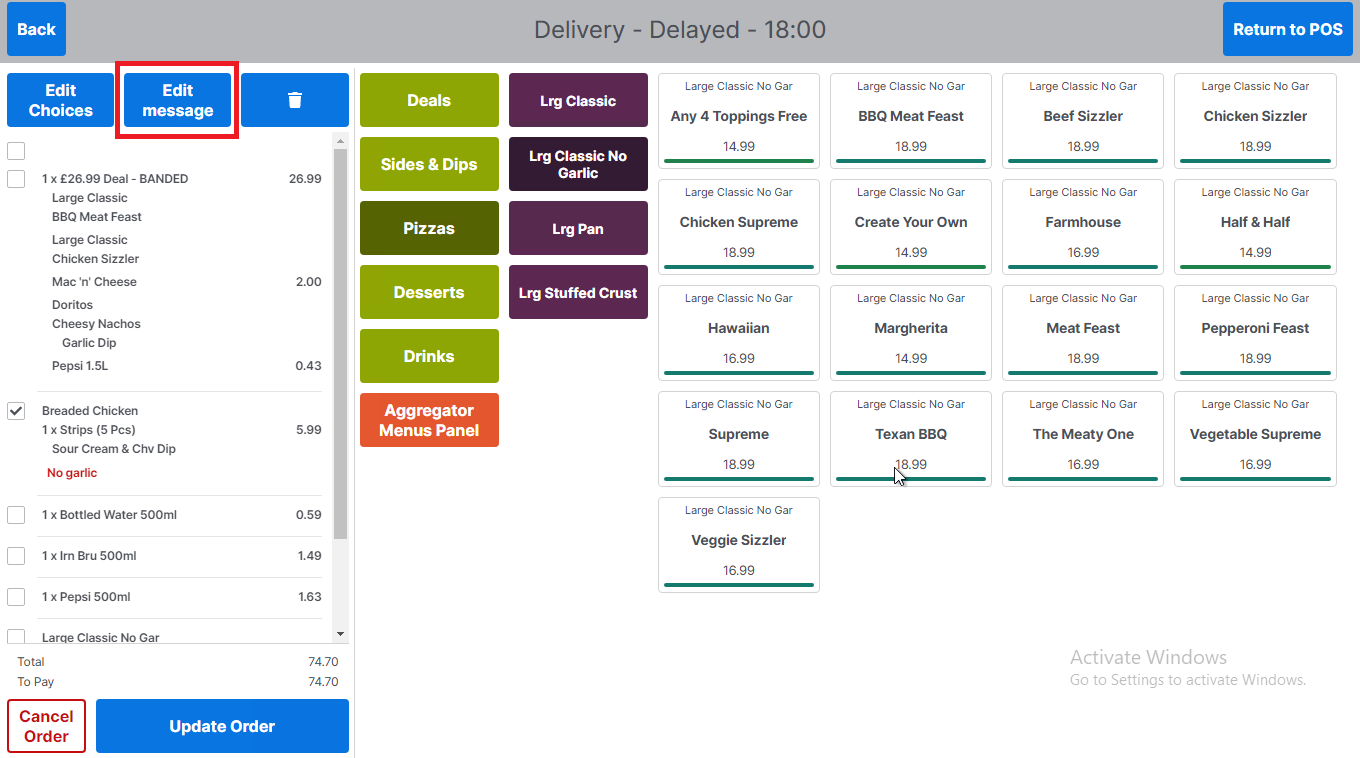
If the operator selects the product with the message the Add Message button changes to Edit Message button allowing the user to edit the message
-
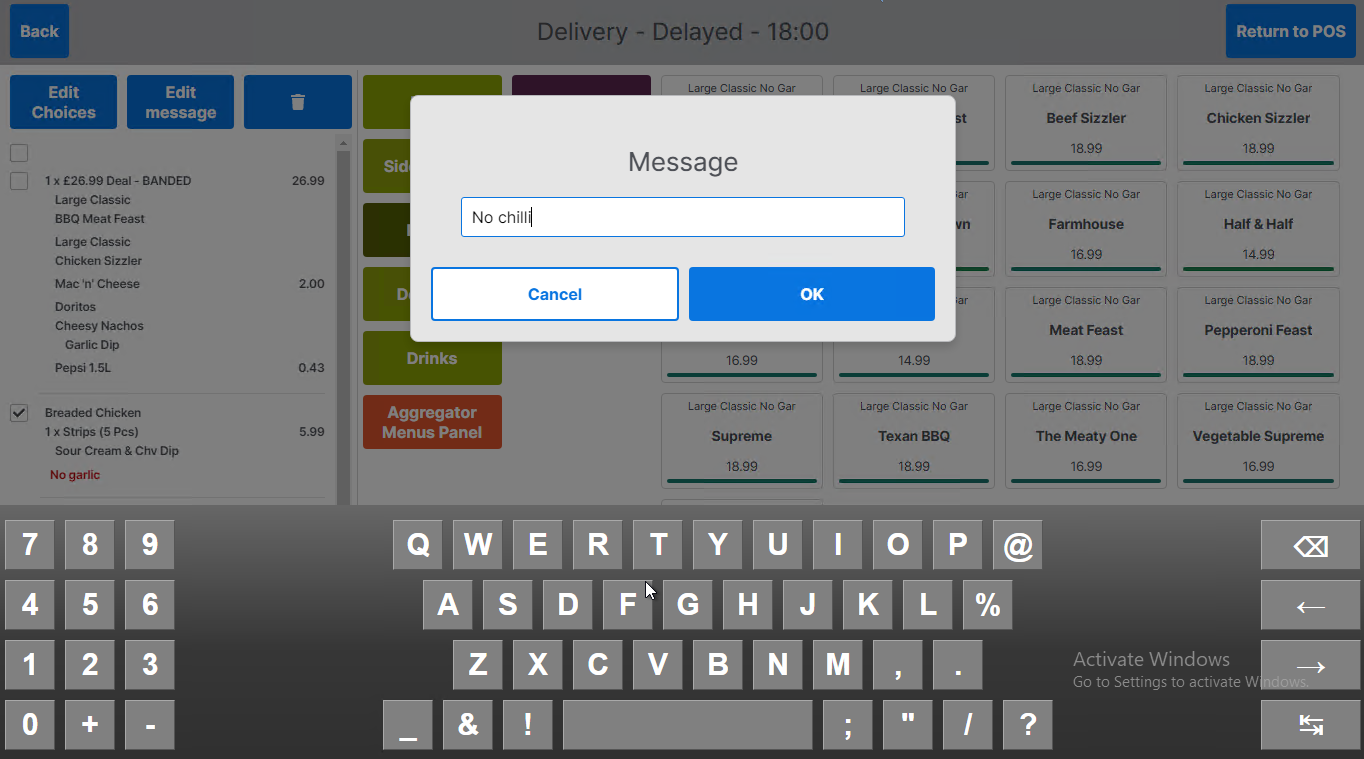
Select Edit Message to open the message entry prompt which will be populated with the existing message
-
Edit existing message and select OK to save changes
-
Cancelling Full Order
-
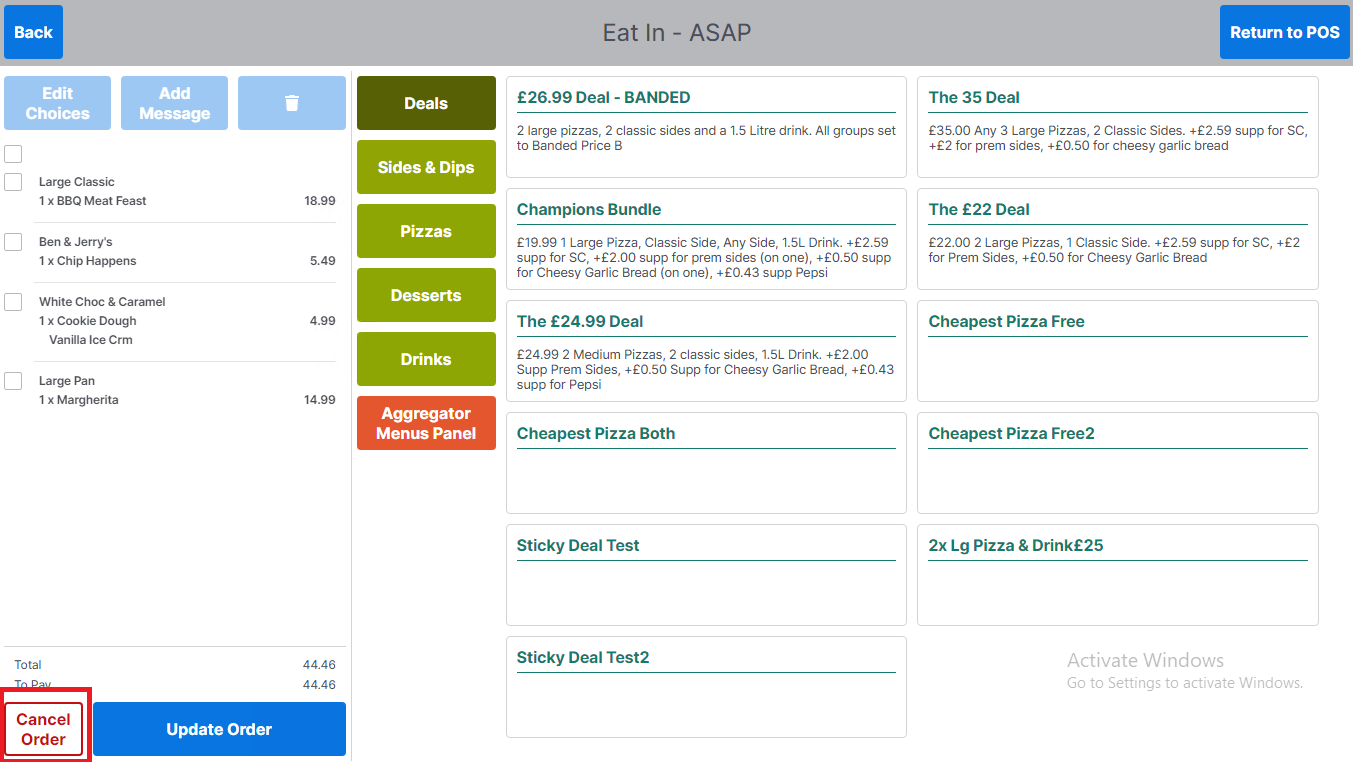
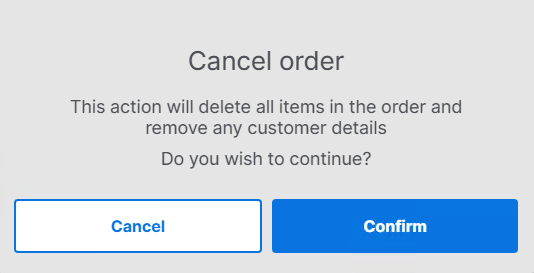
To cancel the order prior to sending to the POS select Cancel Order
-
The operator will be presented with a cancel order confirmation prompt
-
Select Confirm to cancel order
-
Select Cancel to exit without cancelling the order
-